Quote Manager
The Quote Manager addon allows your staff to create and manage professional quotes directly from CLIENTXCMS. Your customers will be able to view offers, accept or reject them directly from their client area.
Configuration and Settings
To configure the extension, go to Admin Panel > Settings > Quote Manager > Settings.
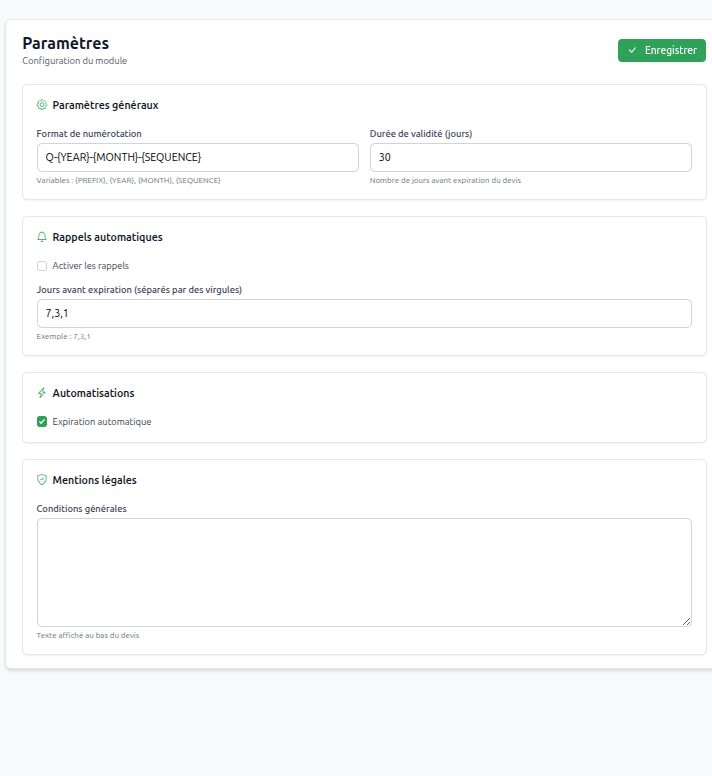
A settings section is available to allow you to configure the global options for your quotes.
Step-by-step Usage
1. Creating a Quote
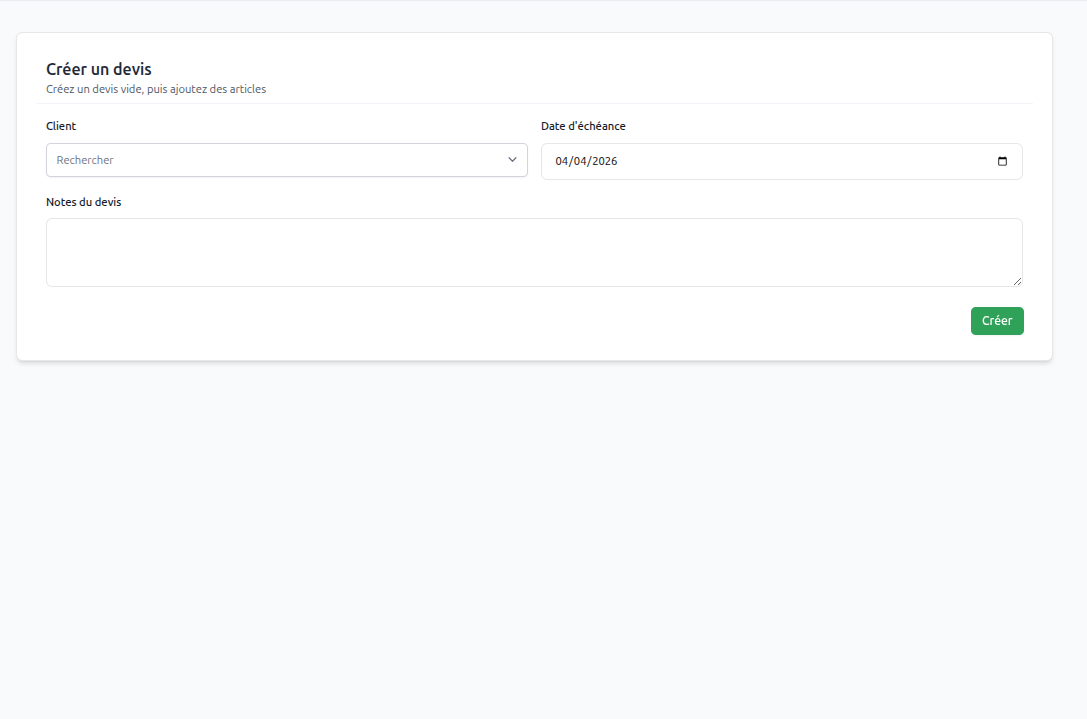
The staff can initialize a quote very simply by selecting the client and filling in the basic information of the proposal.
2. Adding lines and discounts (Draft)
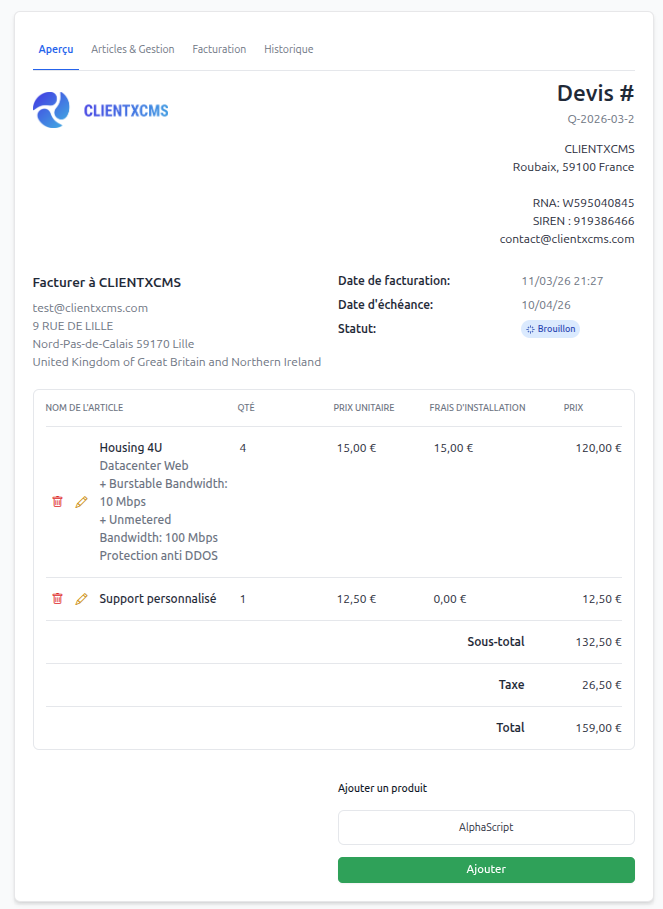
Like a traditional invoice, you can then edit the draft quote to add different lines (products or services) with their prices and quantities, as well as discounts.
3. Management and Detailed View
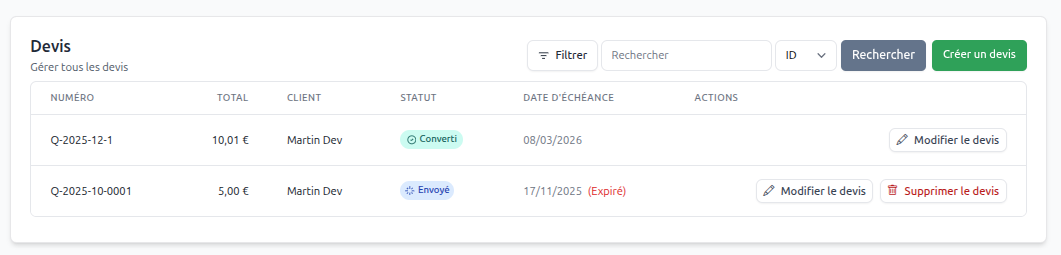
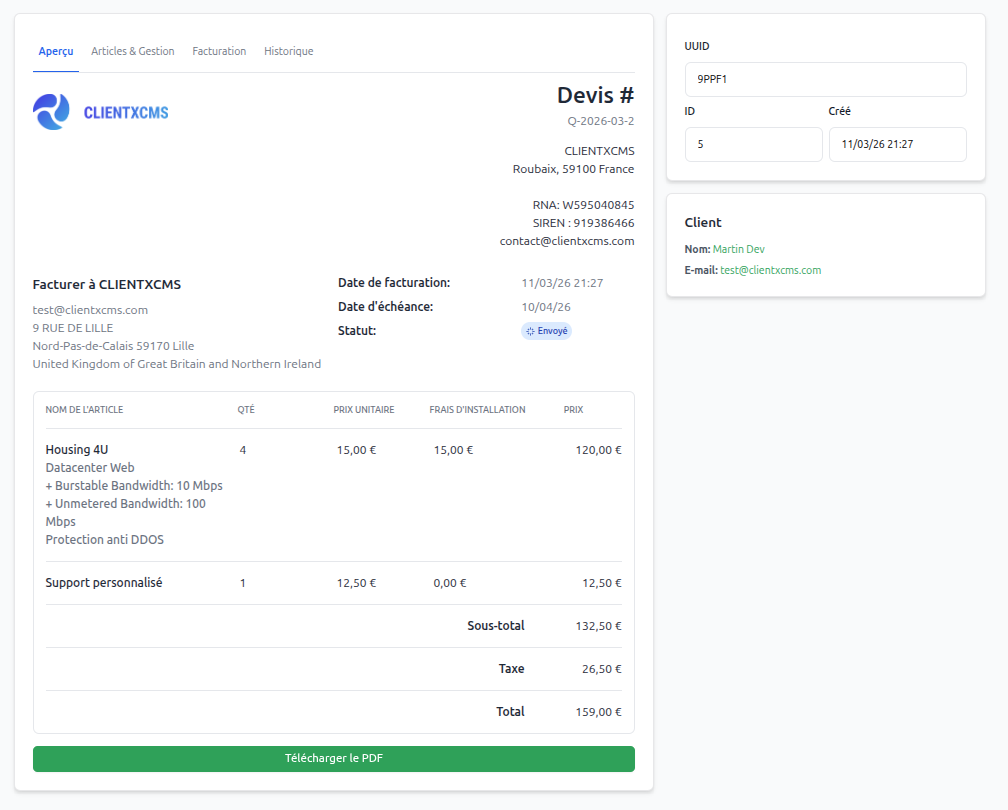
You can view the list of your quotes at any time and track their status (draft, sent, accepted, rejected). The detail of a quote allows the staff to have all the information at hand.
List of quotes:
Detailed view:
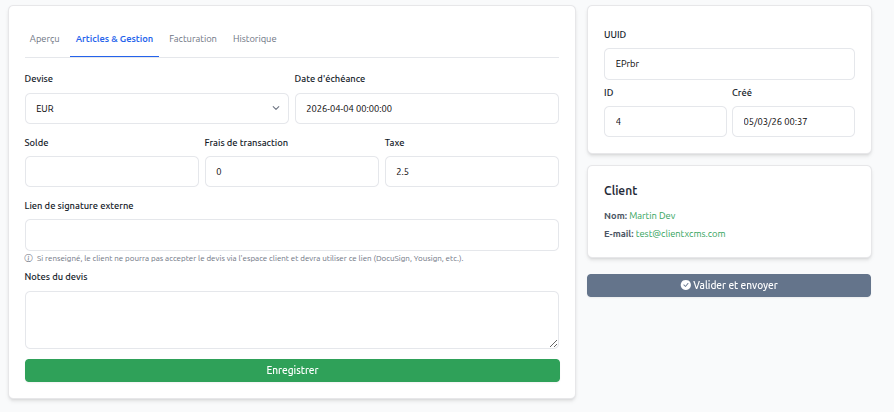
4. Validation and Sending
When the quote is ready, you can validate it to send it to the client. During this validation, the administrator can define a signature link (e.g., a link to Yousign or DocuSign) to facilitate the formalization of the agreement. The quote will then be sent by email and become accessible on the client area.
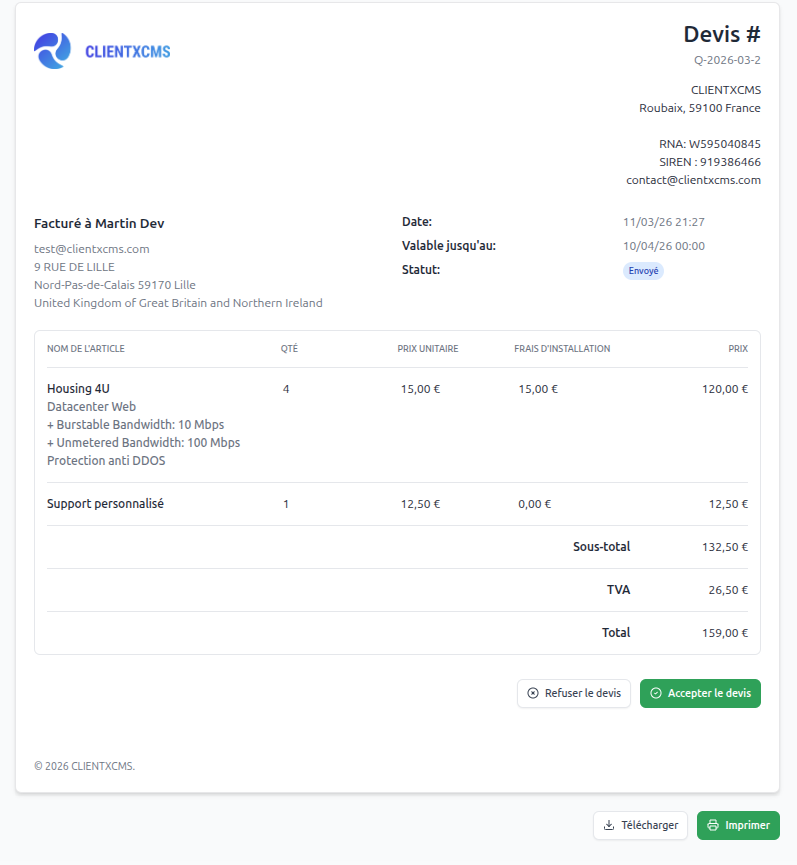
5. Client Area (Preview)
The client will find the quote in their client area, where all pricing information and lines will be detailed. It is from this interface (or via the signature link) that they will be able to accept or reject the proposed quote.
6. Conversion to Invoice
Once the quote is accepted by the client, you can convert it into an invoice in one click. The quote will then be archived and the invoice will be created with the same information.

KPI
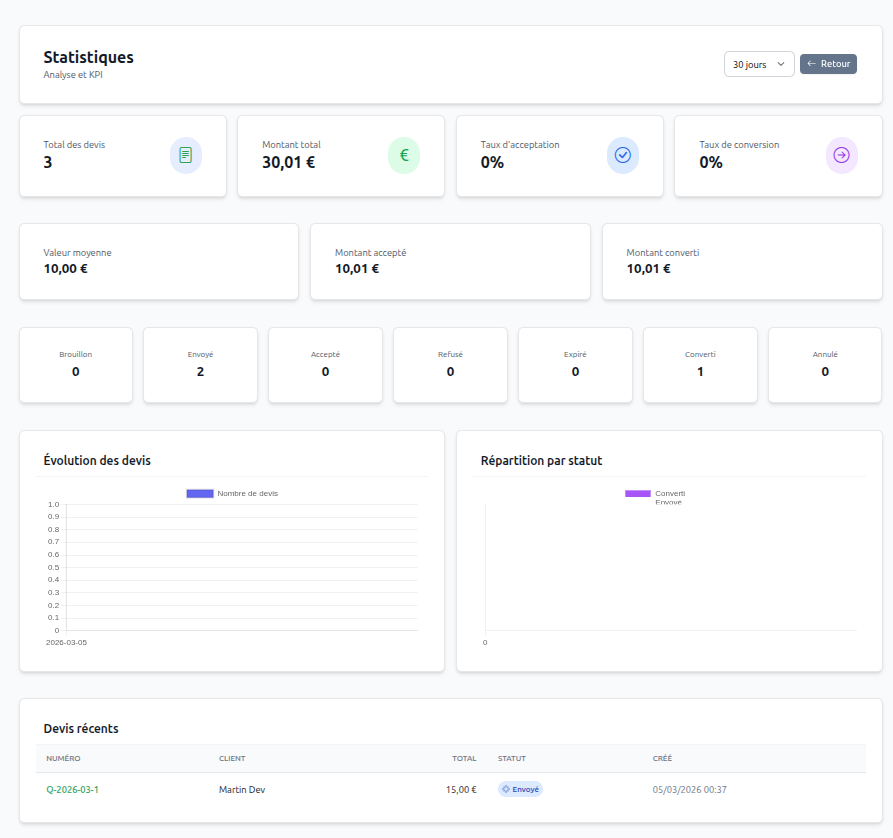
You can view the key performance indicators of the extension in the Admin Panel > Quote Manager > Statistics menu.