Customers
Customers are the users of your client area. They can log in to their client area to manage their services, invoices, tickets, etc. They can log in via the client area login page. Customers can register via the client area registration page or manually through the administration panel.
Customer Management
You can manage customers through the administration panel. You can view the customer list, edit them, and delete them. The colored badges in the first column of the customer list indicate the customer's status. The colors are as follows:
- Green: The customer is active
- Yellow: The customer is suspended or pending confirmation
- Red: The customer is banned
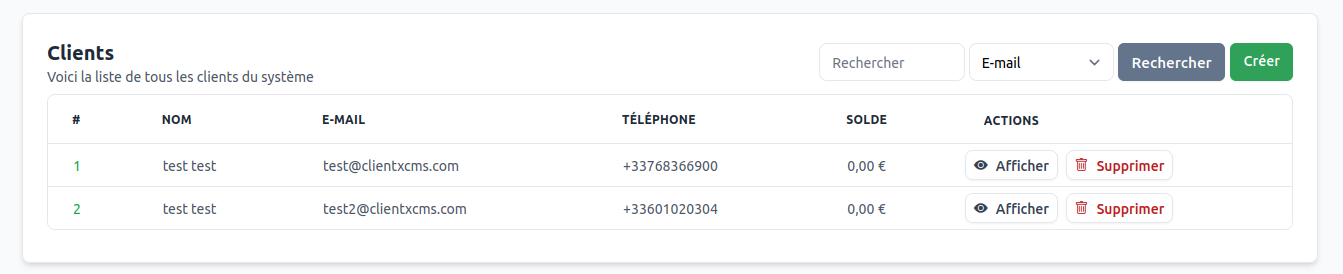 You can search for a customer using the search bar at the top of the page. You can search for a customer by their name, first name, or email.
Creating a Customer via Administration
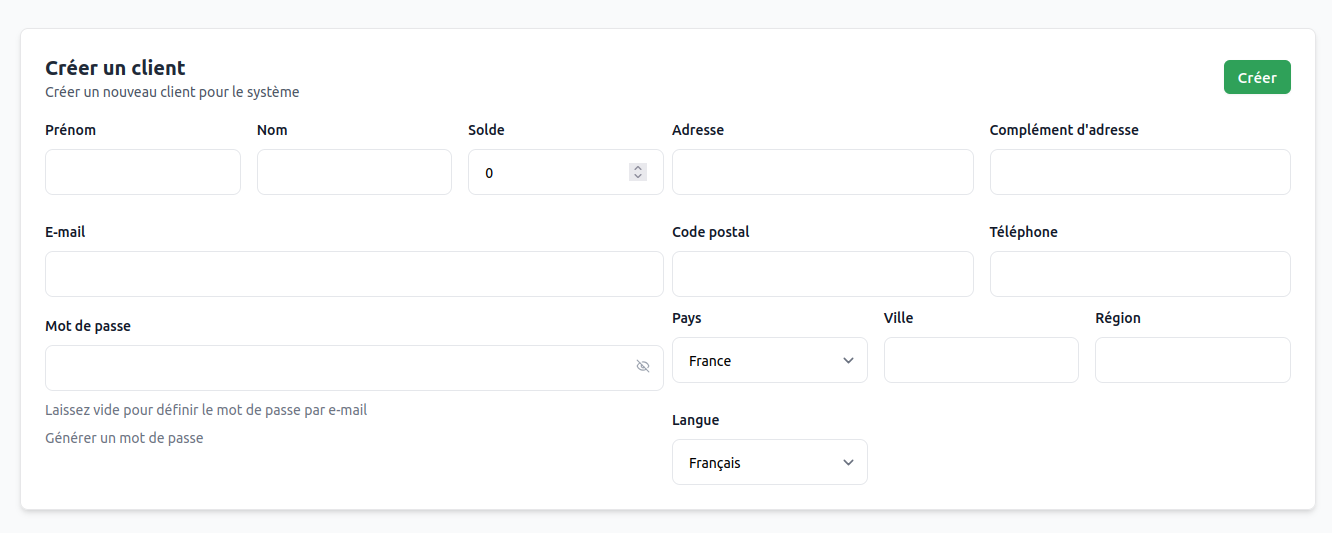
To create a customer through the administration panel, click the Create button at the top right of the page. You will be redirected to the customer creation page.
Customer Profile
You can view the customer profile by clicking the View button on the customer list. You can see the customer's information, their services, invoices, tickets, emails, payment methods, and action history in table format.
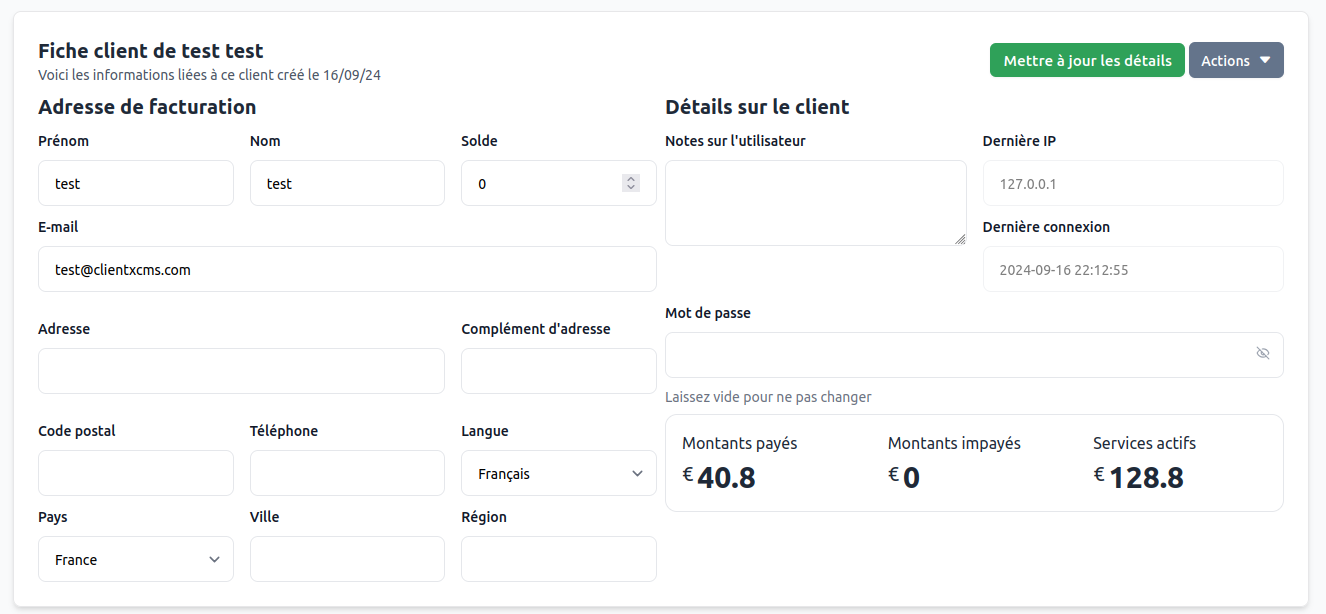
You can edit the customer by clicking the Update Details button at the top right of the page.
You can also add notes or view the customer's last login with their IP address.
Customer Information Details
Each element in the tables is clickable to view the details of each item.
- Services
- Invoices
- Tickets
- Sent Emails
- Payment Methods
- Action History
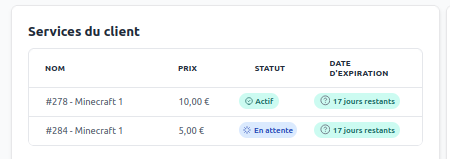
You can view the customer's services on the customer profile.
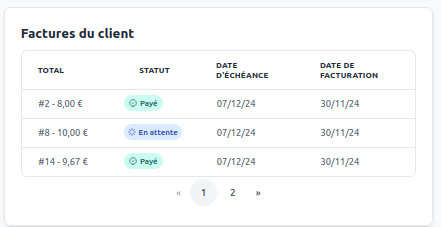
You can view the customer's invoices on the customer profile.
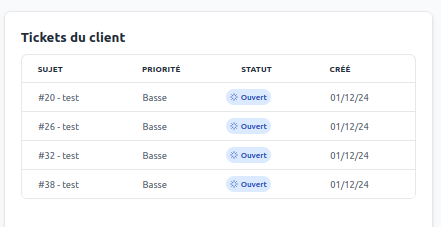
You can view the customer's tickets on the customer profile.
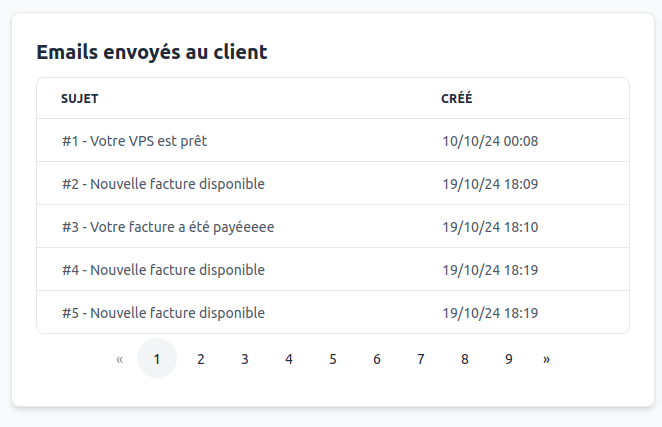
You can view the emails sent to the customer on the customer profile.
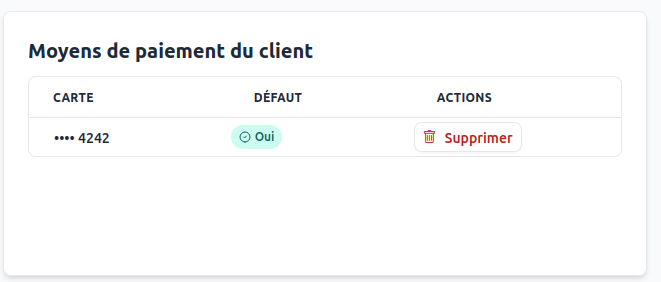
You can view the customer's payment methods on the customer profile. This data is sensitive and is stored securely through third-party platforms like Stripe.
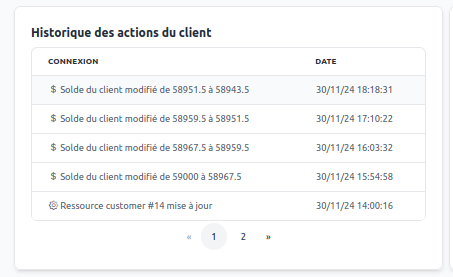
You can view the customer's action history on the customer profile. This allows you to see actions performed on the customer.
The actions are as follows:
- Customer information modification
- New login
- Balance change
- Password reset
- Account confirmation
- 2FA activation
- 2FA deactivation
- Security question disabled
Available Actions
You can perform actions on the customer through the customer profile. The actions are as follows:
Resend Confirmation Email
You can resend the confirmation email to the customer. This allows the customer to confirm their account.
Confirm Account
You can automatically confirm the account if the customer has difficulty confirming their account.
Send Password Reset Email
You can send a password reset email to the customer.
Send Email
You can send an email to the customer through the interface.
Suspend Customer
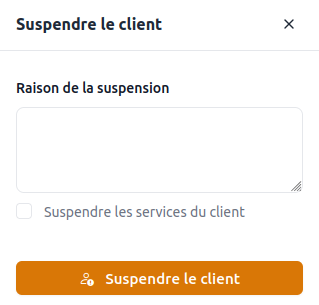
You can suspend the customer if they violate the terms of use. You can add a reason or suspend their services.
Reactivate Customer
You can reactivate the customer. This allows you to reactivate the customer after a suspension. You can also reactivate their services or view the suspension reasons.
Ban Customer
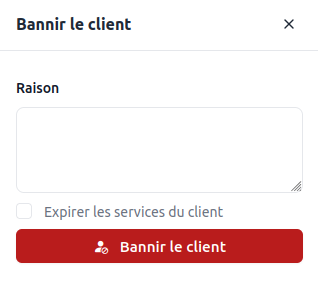
You can ban the customer if they violate the terms of use. You can add a reason or ban their services.
Remove Two-Factor Authentication
You can remove the customer's two-factor authentication if it is enabled.
Disable Security Question
You can disable the customer's security question if it is enabled.
Delete Customer
You can delete the customer. This will soft delete the customer by changing their status to "Deleted".
Security
Password Change
You can change the customer's password through the customer profile. This allows you to change the customer's password in case of password loss.
Automatic Account Confirmation
You can automate customer account confirmation. This allows you to automatically confirm customer accounts after registration. To enable this feature, go to Administration Area > Settings > General > Security and enable the Automatic registration confirmation option.
Common Errors
Error 500 when a customer logs in: This error usually comes from a password hashing problem. You can reset the customer's password to resolve this issue.
You can check your database to see if all passwords are hashed the same way. For example, if you changed the hashing method, old passwords may not be recognized. Passwords must be hashed with the same method to be recognized, starting with either $2y$ or $argon2i. You can change the password hashing method in the security settings with the Hashing driver option.