CTX Reselling
ClientXCMS offers a VPS and CLIENTXCMS license reselling system. All information is available on our showcase website along with reselling prices.
VPS
All information, including prices, is available here. Prerequisite: You must have a valid and active CLIENTXCMS license.
CLIENTXCMS License
All information, including prices, is available here. Prerequisite: You must have a valid and active CLIENTXCMS license.
For any request or to become a partner, please contact support.
Regarding CLIENTXCMS licenses:
- No API key is required.
- Orders must be placed via clientxcms.com using the partner promo code indicated on the reseller page.
- You can also order licenses for your customers and access the reseller area to manage their licenses.
Regarding VPS:
- You will receive an API key that will allow you to manage your customers' VPS directly from your CLIENTXCMS client area.
- Billing is based on services ordered by you or your customers.
- For renewals or expiration date changes, fees will be calculated pro-rata based on remaining days until expiration, with a minimum amount of €0.50.
This system ensures simplified management of licenses and VPS services for your customers, while offering flexibility and automation.
Supported Features
- Automate VPS creation and provisioning
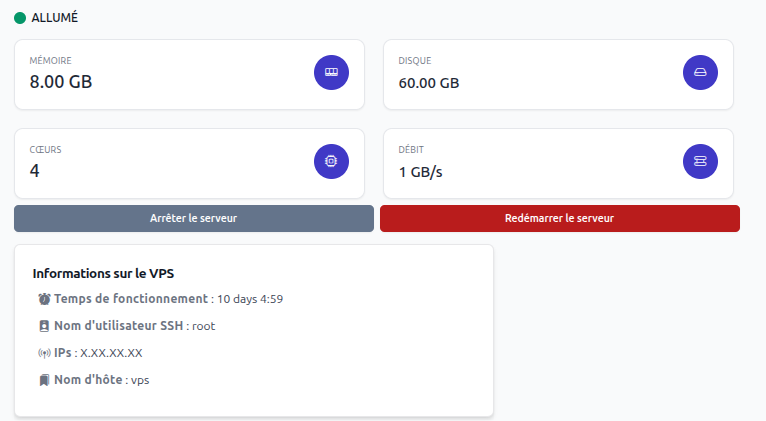
- VPS management from client area
- Send login credentials by email
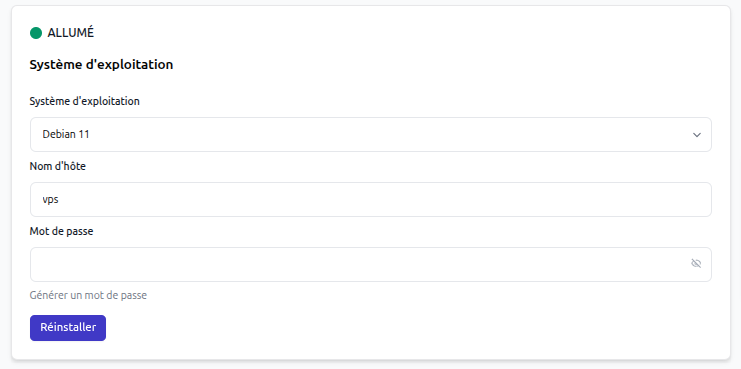
- Automatic VPS reinstallation
- Automate suspensions and terminations
- Service upgrades
Server Creation
Create a CLIENTXCMS server in Admin Panel > Settings > Provisioning > Servers > New by selecting the server type as "Reselling".
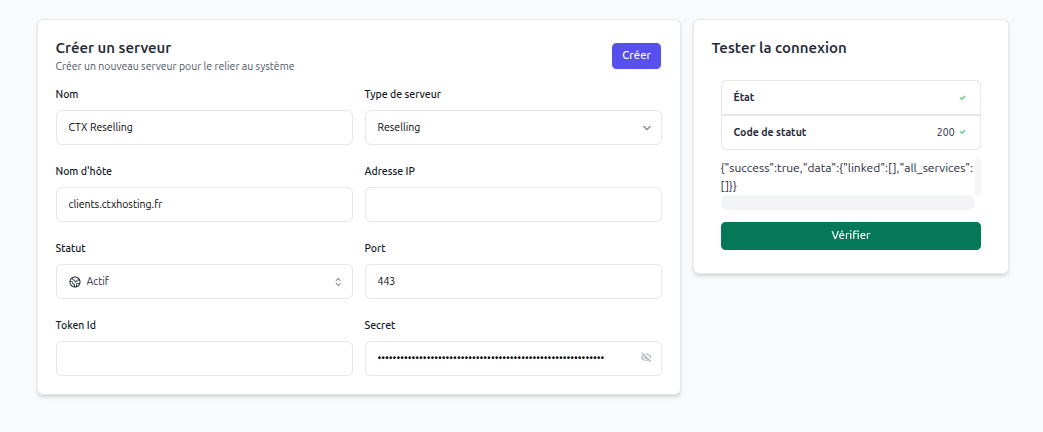
IP Address: by-hoster.net/client Hostname: by-hoster.net/client Username: ctxreselling Password: Contact By-Hoster.net support Port: 443
The following port must be open to connect CLIENTXCMS to your reselling server: 443
These are not your CLIENTXCMS credentials, but the API key.
You can test the server connection and verify that the server returns "Success" in response.
Offer Configuration
First, create your product by selecting "Reselling".
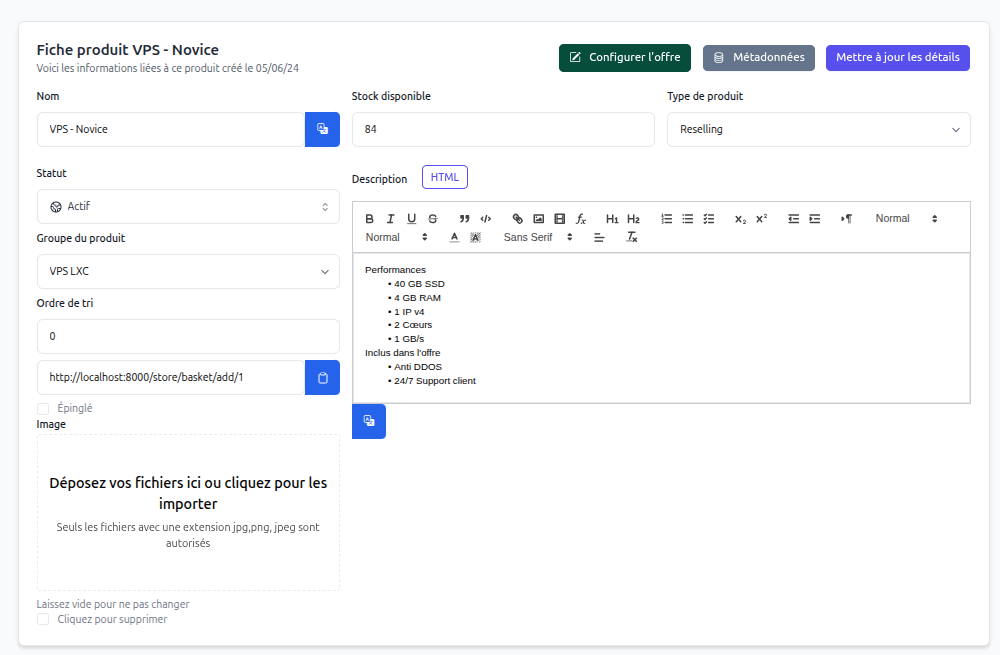 After pressing the "Create" button, it creates your product, then click the "Configure Offer" button which will direct you to the offer configuration page. If the fields are empty, make sure your server is not hidden, in which case it will not be considered by the system to retrieve reselling offers.

Service Display
- VPS Management
- Reinstallation
- Customer Data