Late Fees
The Late Fees extension allows you to automate the application of additional charges on unpaid invoices after their due date. It offers great flexibility to configure fixed or percentage amounts, manage grace periods, and even exempt certain customers.
Penalty processing is performed automatically every day at 06:00 AM via a scheduled task.
Global Configuration
To configure late fees, go to Settings > Billing > Late Fees Settings.
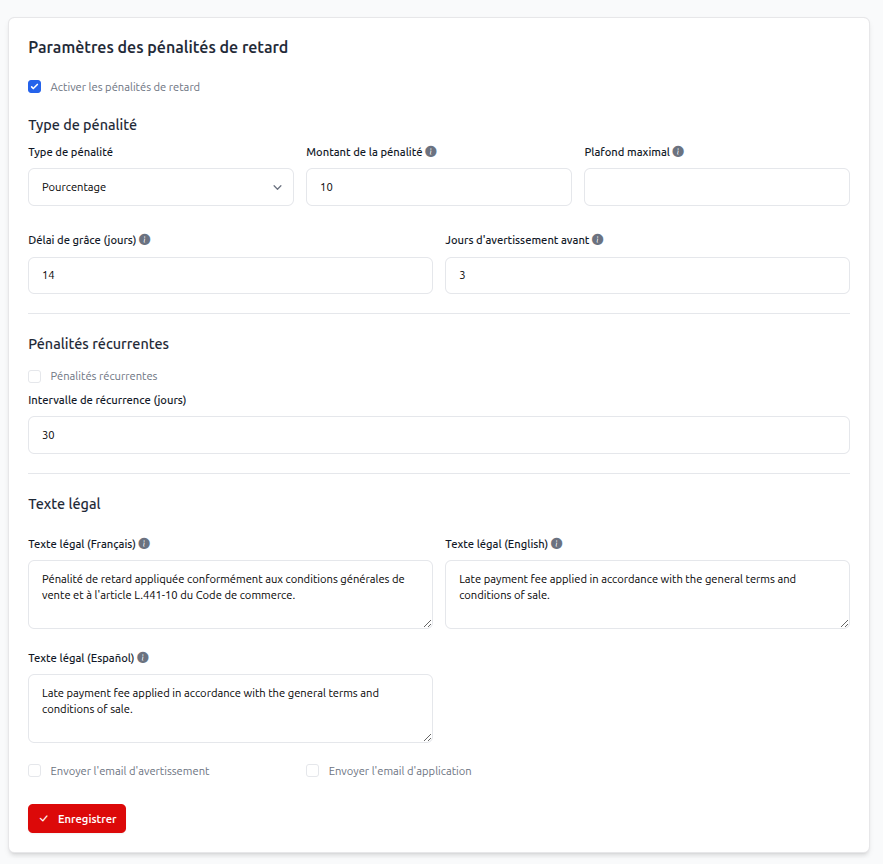
Available Parameters:
| Parameter | Description |
|---|---|
| Enable Late Fees | Globally enable or disable automatic processing. |
| Fee Type | Choose between a fixed amount or a percentage of the invoice amount. |
| Fee Amount | The value to apply (e.g., 10 for 10% or 5.00 for $5). |
| Maximum Fee Cap | (Optional) Defines the maximum amount a penalty can reach. |
| Grace Period (days) | Number of days after the due date before the penalty is applied. |
| Warning Days Before | Number of days before the due date to send a warning email. |
| Recurring Fees | If enabled, the penalty will be reapplied periodically if the invoice remains unpaid. |
| Recurring Interval (days) | Frequency at which the recurring penalty is applied. |
| Legal Text | Text displayed on the invoice to justify the penalty (available in multiple languages). |
| Notifications | Ability to send a warning email before application and an email once the penalty is applied. |
Customer Exemptions
It is possible to exclude certain customers from the automatic application of penalties (for example, for VIP customers or institutional accounts).
Access the Customer Exemptions section at the bottom of the settings page.
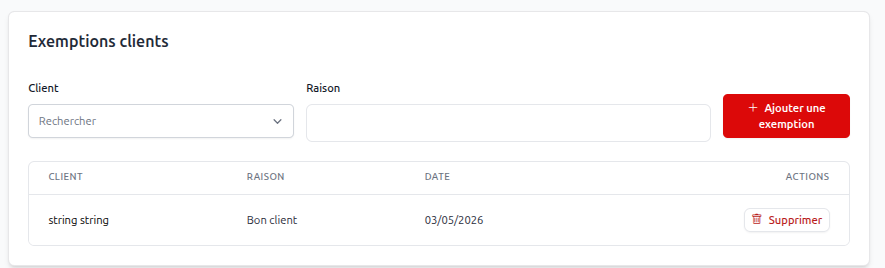
- Search for the customer to exempt in the Customer field.
- Provide a Reason (optional) for record-keeping.
- Click Add Exemption.
Late Fees Management
You can track all applied penalties on the Late Fees page accessible via the administration menu.
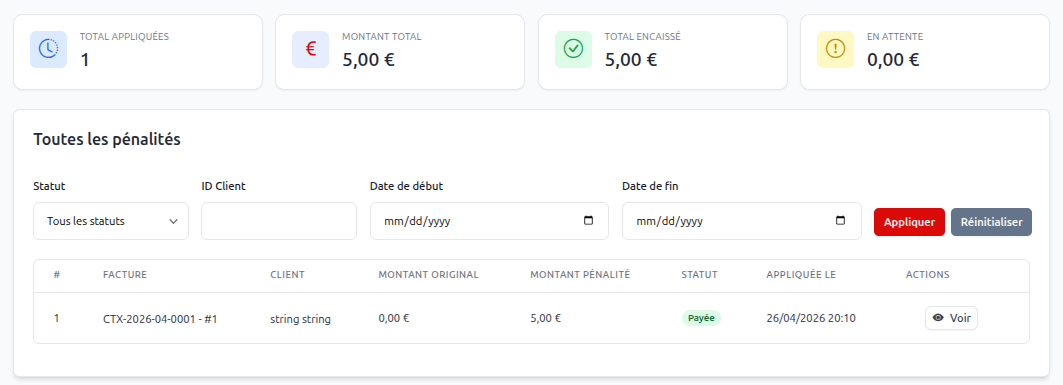
This page displays global statistics:
- Total Applied: Number of penalties generated.
- Total Amount: Cumulative value of penalties.
- Total Collected: Amount of penalties paid by customers.
- Outstanding: Amount remaining to be collected.
You can filter the list by status (Pending, Applied, Paid, Cancelled), by customer, or by date.
Manual Application
If you need to add a one-time penalty to a specific invoice, you can do so manually using the Apply Manual Fee button.

Simply select the concerned invoice and indicate the fee amount to apply immediately. The penalty will then be added to the invoice (or created separately depending on your configuration).
Detail and Cancellation
By clicking on Show for a specific penalty, you can access its details and cancel it if necessary.
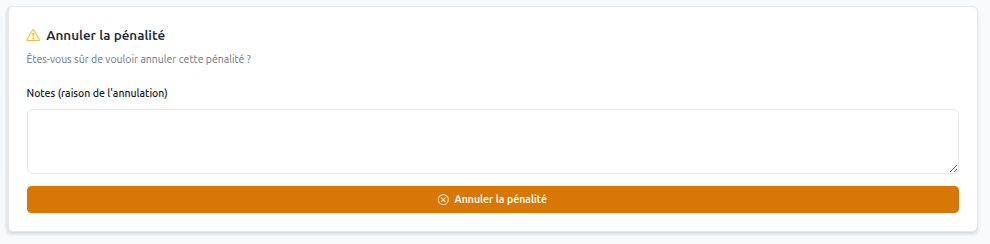
To cancel (waive) a penalty:
- Provide a reason in the Notes field.
- Click Cancel Late Fee.
Once cancelled, the status will change to Cancelled and the amount will no longer be due.