OpenProvider
OpenProvider connects ClientXCMS to the OpenProvider registrar. It lets you import the domain extensions you want to sell, retrieve the registrar's prices, configure your margins, and provision domain names automatically.
Enable the OpenProvider module in ClientXCMS before starting this configuration.
Get your OpenProvider credentials
OpenProvider authenticates API requests with the username and password of a contact person whose API access is enabled. In ClientXCMS, the Register env key is therefore your OpenProvider account email address and the Password/API key is that account's password.
Production credentials
- Sign in to the OpenProvider control panel.
- Open Account overview > Contact persons.
- Add a contact person or edit the one ClientXCMS should use.
- Open its API tab and enable API access.
- Use this contact's email address and password in ClientXCMS.
The account must be active and may need to accept the registry contracts required for the extensions you intend to sell.
Sandbox credentials
The sandbox is a separate environment: production credentials do not work there.
- Create a dedicated account at cp.sandbox.openprovider.nl/signup.
- Sign in to the sandbox control panel.
- Enable API access for the contact person as described above.
- Use this sandbox contact's email address and password in ClientXCMS.
- Enable Test mode when configuring the server.
The sandbox does not support domain transfers, and some extensions may be unavailable. Disable Test mode and use your production credentials before selling real domains.
Configure the server
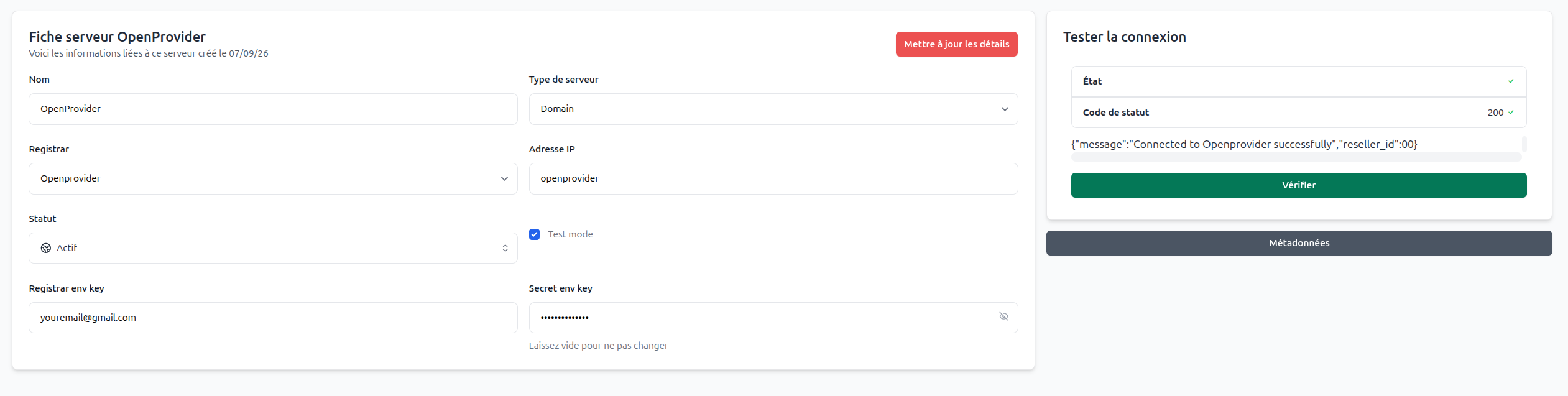
In the ClientXCMS administration area, go to Settings > Provisioning > Servers, create a server, and select OpenProvider.
Fill in the server name and the following credentials:
- Register env key: the email address of the OpenProvider contact with API access;
- Password/API key: the password for that contact;
- Test mode: enable it only when using the OpenProvider sandbox.
Test the connection, then save the server.
Create the domain product
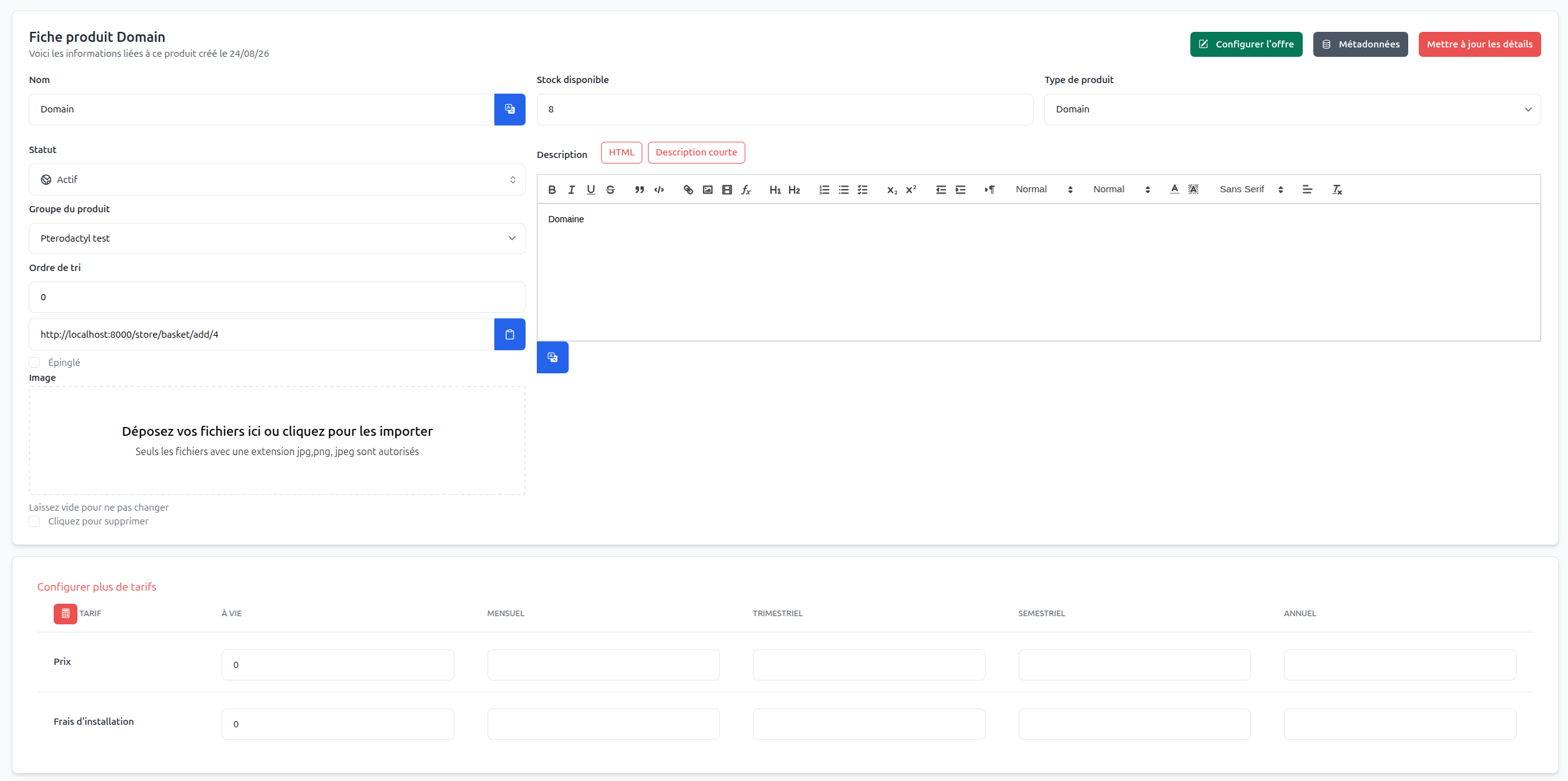
Create one product for all registrars and extensions. You do not need a separate product for every TLD.
- Go to Settings > Store > Products and click Create.
- Name the product
Domainand add a short description. - Select the domain product type.
- Set its base price to
0. The actual price will be defined for each imported extension. - Save the product.
Import domain extensions
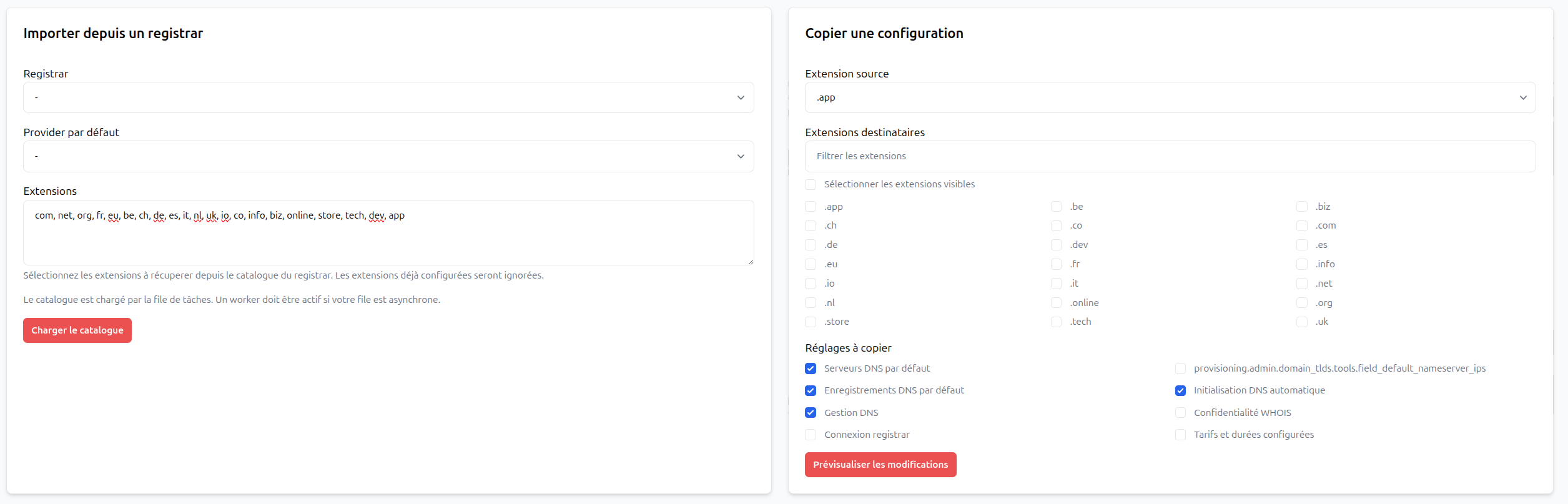
- Go to Settings > Provisioning > Domain extensions.
- Start an import, then select OpenProvider as the registrar and choose the server configured earlier.
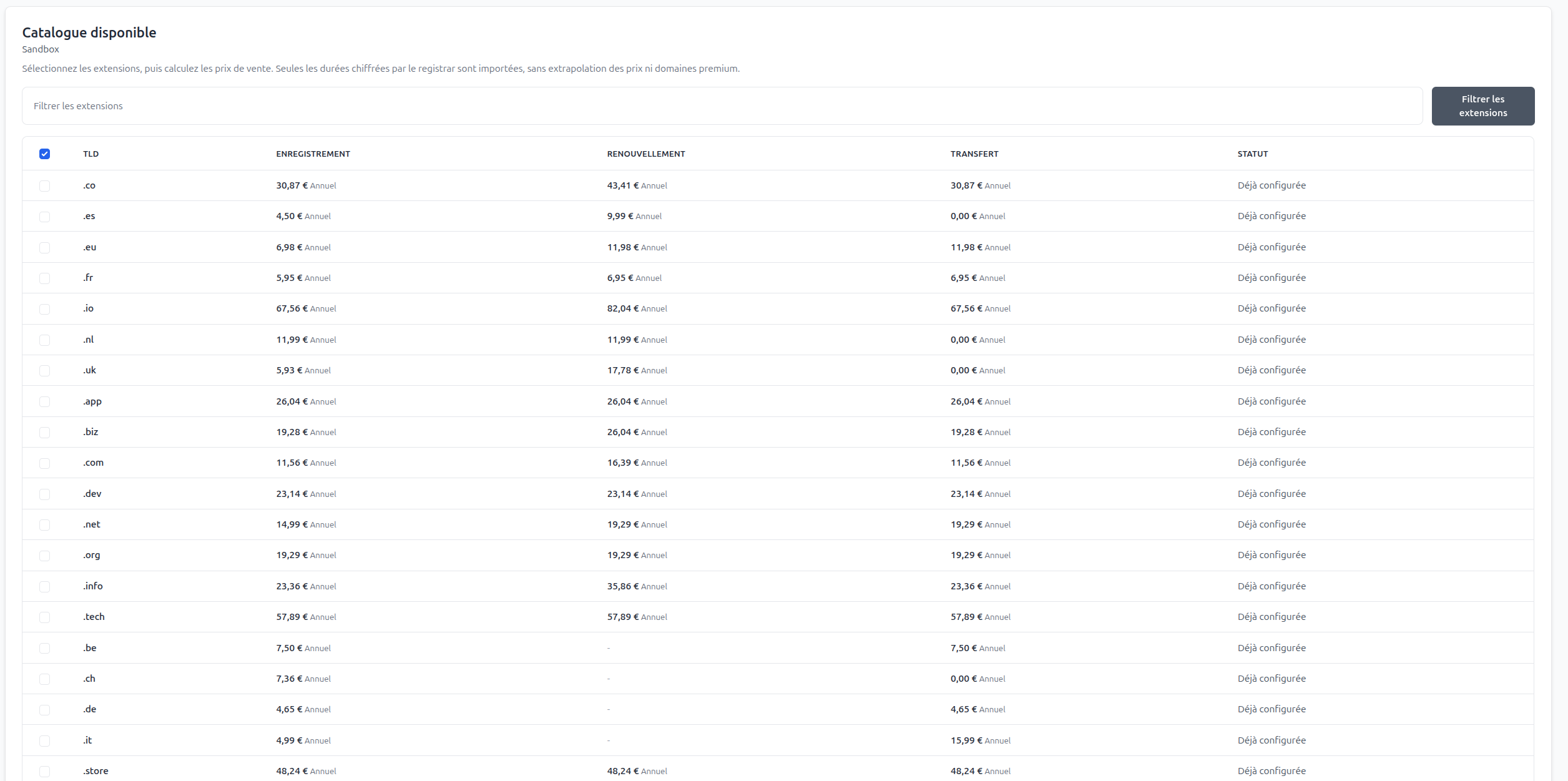
- Select the extensions you want to sell. ClientXCMS loads the prices returned by OpenProvider.
You can then set your selling prices in either of two ways:
- a fixed price for the selected extensions;
- a percentage margin applied to the registrar's price.
Bulk selection lets you apply one price or margin to a first group of extensions, then select another group and apply different pricing. Review the registration, renewal, and transfer prices, then confirm the import.

Configure default DNS records
After importing the extensions, open one of them from the domain extensions list.
- Add the default nameservers that should be assigned to newly registered domains.
- Add any default DNS records you want ClientXCMS to create. For example, you can add an
Arecord pointing to your web server. - Save the extension.
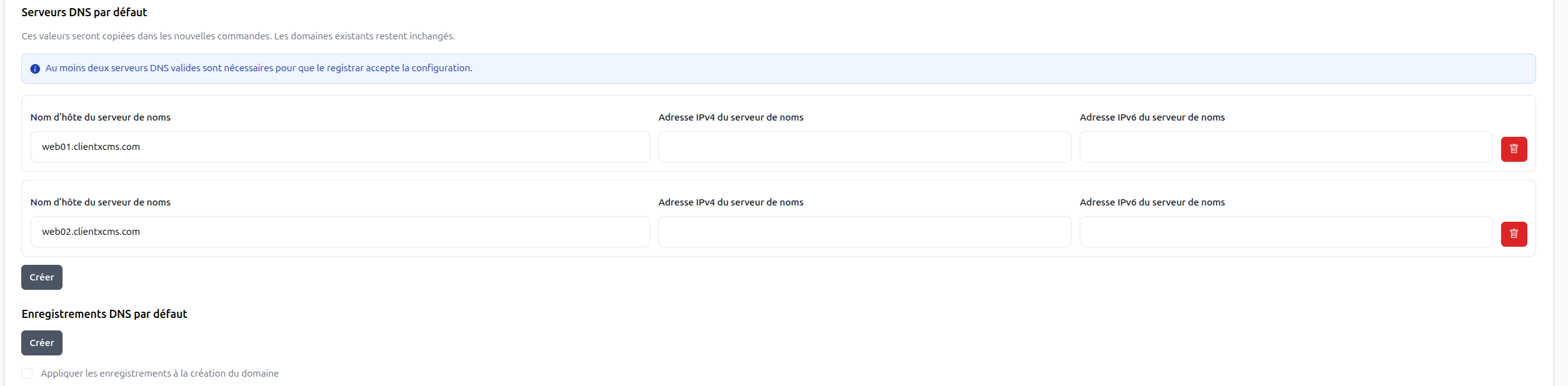
Return to the extensions list and select the extension you just configured. Use the copy action to apply the same configuration to the other selected extensions instead of entering it again for every TLD.
Place a test order and verify the availability check, selling prices, registration, nameservers, and default DNS records. A sandbox order does not register a real domain.