Database
The Database module lets you sell managed database services from CLIENTXCMS. It supports MySQL/MariaDB, PostgreSQL, and MongoDB. MySQL/MariaDB services can also be connected through ProxySQL.
The Database module must be enabled in CLIENTXCMS before you can create a server or a product. Learn how to enable a module.
Supported Features
- Automatic database and primary user creation after an order
- Database and additional-user management from the customer area
- Limits for databases, users, connections, and storage
- Automatic suspension and reactivation
- Automatic expiration and termination
- Product upgrades with the new limits applied to the service
- Optional phpMyAdmin access for MySQL/MariaDB
- Optional ProxySQL user registration and routing for MySQL/MariaDB
Prepare the Database Server
Before adding the server to CLIENTXCMS:
- Install and start the selected database engine.
- Create a dedicated administration account for CLIENTXCMS. It must be allowed to create, update, and delete databases and users, and to grant the permissions selected by customers.
- Allow remote connections from the CLIENTXCMS server only.
- Open the database port in the firewall only for the CLIENTXCMS IP address.
- Test the connection from the CLIENTXCMS host before saving the server.
Do not expose the administration port publicly. Use an IP allowlist, a private network, or a VPN, and store a dedicated password for CLIENTXCMS. Do not reuse the database root account when a restricted administration account can be used.
Engine Connection Details
| Engine | Default port | Administration account requirements |
|---|---|---|
| MySQL/MariaDB | 3306 | Manage databases, users, grants, connection limits, and quotas supported by the server |
| PostgreSQL | 5432 | Create and remove databases and roles, change role limits, and grant database privileges |
| MongoDB | 27017 | Create and remove databases/users and manage their roles and permissions |
The hostname must resolve from the CLIENTXCMS server. If a non-default port is configured on the database server, enter that port instead.
MongoDB PHP Extension
MongoDB support requires the PHP MongoDB extension on the server running CLIENTXCMS. On Debian or Ubuntu, install it with:
sudo apt update
sudo apt install php-mongodb
Restart the PHP service used by your installation and your web server if necessary. For example, replace 8.4 with your installed PHP version:
sudo systemctl restart php8.4-fpm
sudo systemctl restart nginx
Verify that the extension is enabled:
php -m | grep mongodb
The command must return mongodb. If CLIENTXCMS uses a different PHP version from the command-line version, install and enable the extension for that version as well.
Create the CLIENTXCMS Server
Go to Administration Area > Settings > Provisioning > Servers > New, then select Database as the server type.
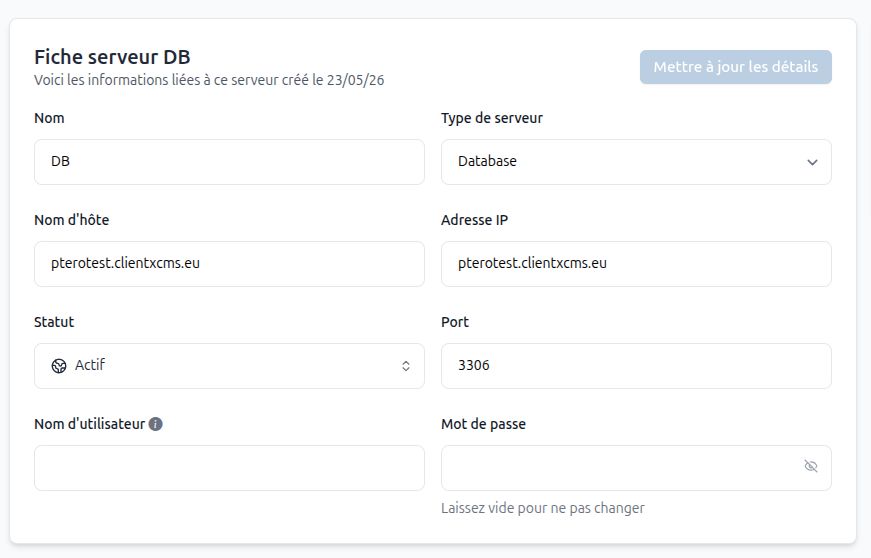
Complete the server form as follows:
| Field | Configuration |
|---|---|
| Name | An internal name that clearly identifies the database node |
| Server type | Database |
| Hostname | Public or private hostname used by customers when connecting |
| IP address | Address used by CLIENTXCMS to reach the database server |
| Status | Active to allow provisioning on this server |
| Port | Port of the selected engine, such as 3306, 5432, or 27017 |
| Username | Dedicated database administration account |
| Password | Password of the administration account |
Save the server and test its connection. A failed test usually means that the host, port, credentials, remote-access rules, or firewall allowlist is incorrect.
MySQL/MariaDB with ProxySQL
ProxySQL is optional and is available only for MySQL/MariaDB services. Leave it disabled when customers connect directly to the MySQL server.
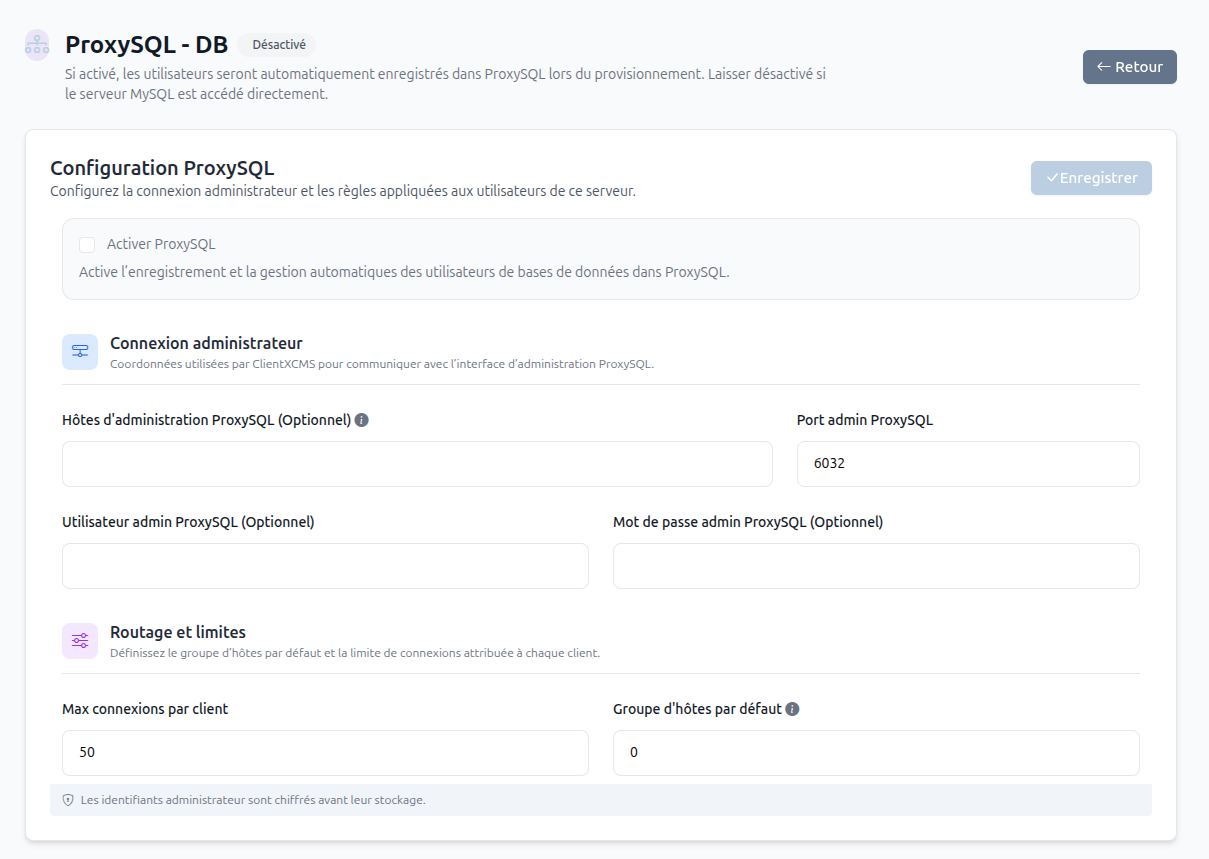
When ProxySQL is enabled, CLIENTXCMS automatically registers and manages provisioned database users in ProxySQL. Configure:
| Field | Configuration |
|---|---|
| ProxySQL administration host | Host of the ProxySQL administration interface; leave empty only when the module can use the database server host |
| ProxySQL administration port | Usually 6032 |
| ProxySQL admin user | Account allowed to manage ProxySQL users and runtime configuration |
| ProxySQL admin password | Password of the ProxySQL administration account |
| Maximum connections per customer | Connection limit assigned to each provisioned customer user |
| Default hostgroup | ProxySQL hostgroup receiving the customer connections |
The ProxySQL backend must already point to the MySQL/MariaDB server. Verify that the default hostgroup exists and that the address given to customers is the ProxySQL frontend address, not its administration interface.
Create a Database Product
First, create a product and select Database as its type.
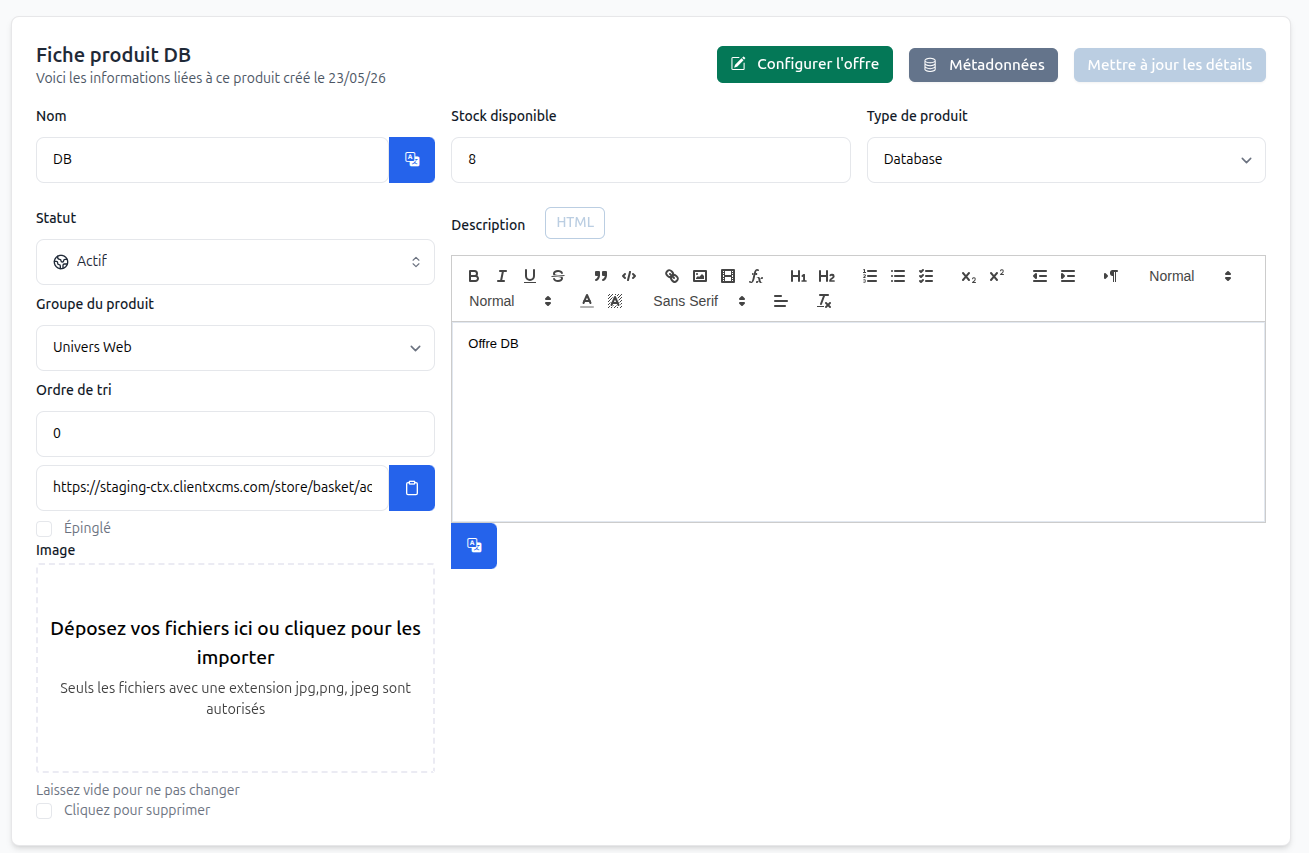
Configure its name, product group, price, stock, description, and visibility as for any other CLIENTXCMS product. Save it, then select Configure Offer.
- MySQL/MariaDB
- PostgreSQL
- MongoDB
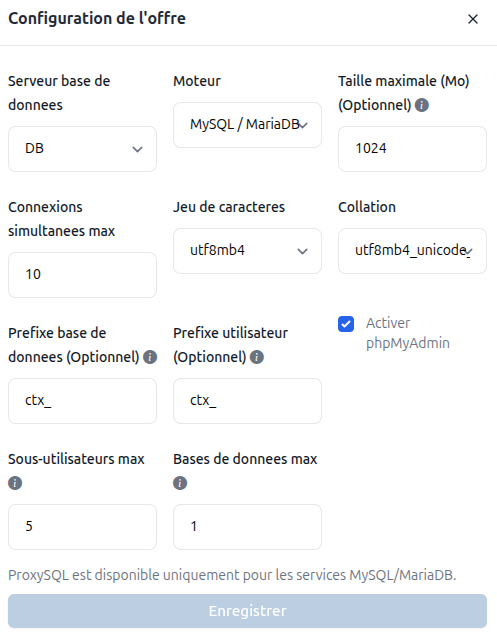
Select MySQL/MariaDB to configure storage and connection limits, the character set, collation, resource prefixes, phpMyAdmin access, and the maximum numbers of databases and additional users. This is the only engine compatible with the optional ProxySQL configuration.
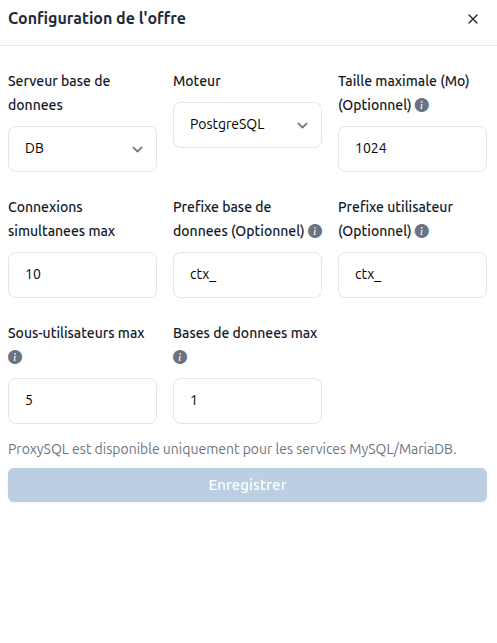
Select PostgreSQL to provision databases and roles on the chosen PostgreSQL server. Configure the generated database and user prefixes, along with the maximum numbers of databases and additional users.
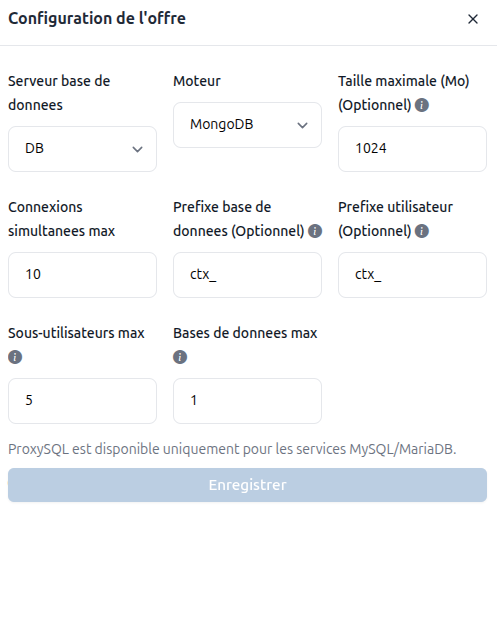
Select MongoDB to configure storage and connection limits, generated prefixes, and the maximum numbers of databases and additional users. The PHP MongoDB extension described above must be enabled before provisioning.
The available fields depend on the selected engine:
| Field | Description |
|---|---|
| Database server | Node on which the service will be provisioned |
| Engine | MySQL/MariaDB, PostgreSQL, or MongoDB |
| Maximum size (MB) | Storage quota assigned to the service when supported |
| Maximum simultaneous connections | Maximum number of connections allowed for the service |
| Character set and collation | Default encoding and sorting rules for MySQL/MariaDB databases |
| Database prefix | Optional prefix added to generated database names |
| User prefix | Optional prefix added to generated usernames |
| Maximum additional users | Number of users the customer may create in addition to the primary user |
| Maximum databases | Number of databases the customer may create |
| Enable phpMyAdmin | Displays phpMyAdmin access for a MySQL/MariaDB service |
Use short prefixes ending with an underscore, such as ctx_. They make provisioned resources easy to identify while leaving enough room for the generated unique name.
Choose limits that the database server can actually enforce and sustain. In particular, keep connection limits below the engine's global capacity and account for all products hosted on the same node.
Service Automation
Once the product is configured, the module follows the standard CLIENTXCMS service lifecycle:
| Event | Automated action |
|---|---|
| Creation | Creates the primary database and user, generates credentials, applies the offer limits, and registers the user in ProxySQL when enabled |
| Suspension | Blocks use of the database service until it is reactivated |
| Reactivation | Restores access to the existing service and its resources |
| Upgrade | Applies the limits and options of the new product configuration |
| Expiration/termination | Removes the service resources according to the configured CLIENTXCMS expiration workflow |
Database deletion is irreversible unless you maintain external backups. Configure payment reminders and termination delays carefully, and back up production databases outside the provisioned server.
Database services cannot be imported manually into CLIENTXCMS. This restriction prevents CLIENTXCMS from taking control of databases, users, or credentials that were not created and secured by the module. Every service must therefore be provisioned automatically from a configured Database product.
Customer Management
Customers can view their connection information and manage the resources allowed by the product limits.
Databases
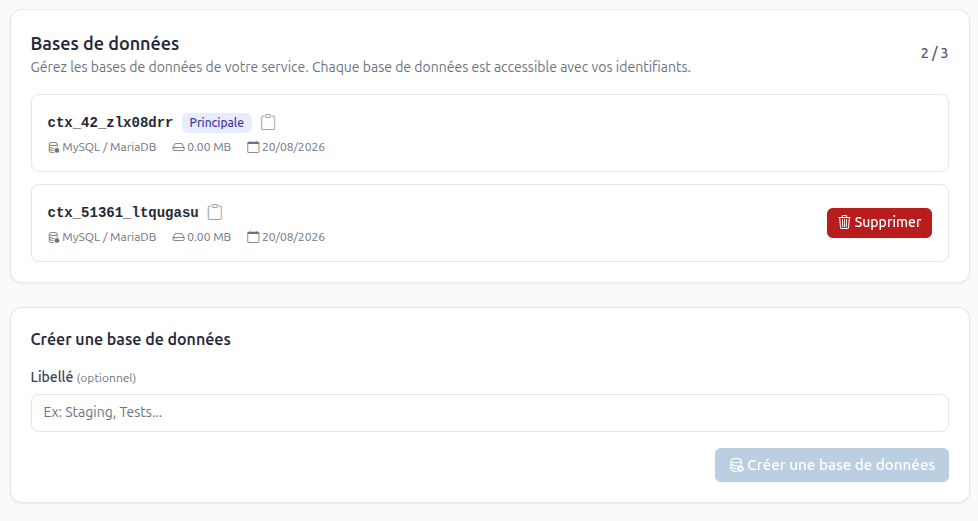
The customer can list databases, identify the primary database, create additional databases up to the configured limit, and delete eligible additional databases.
Users and Permissions
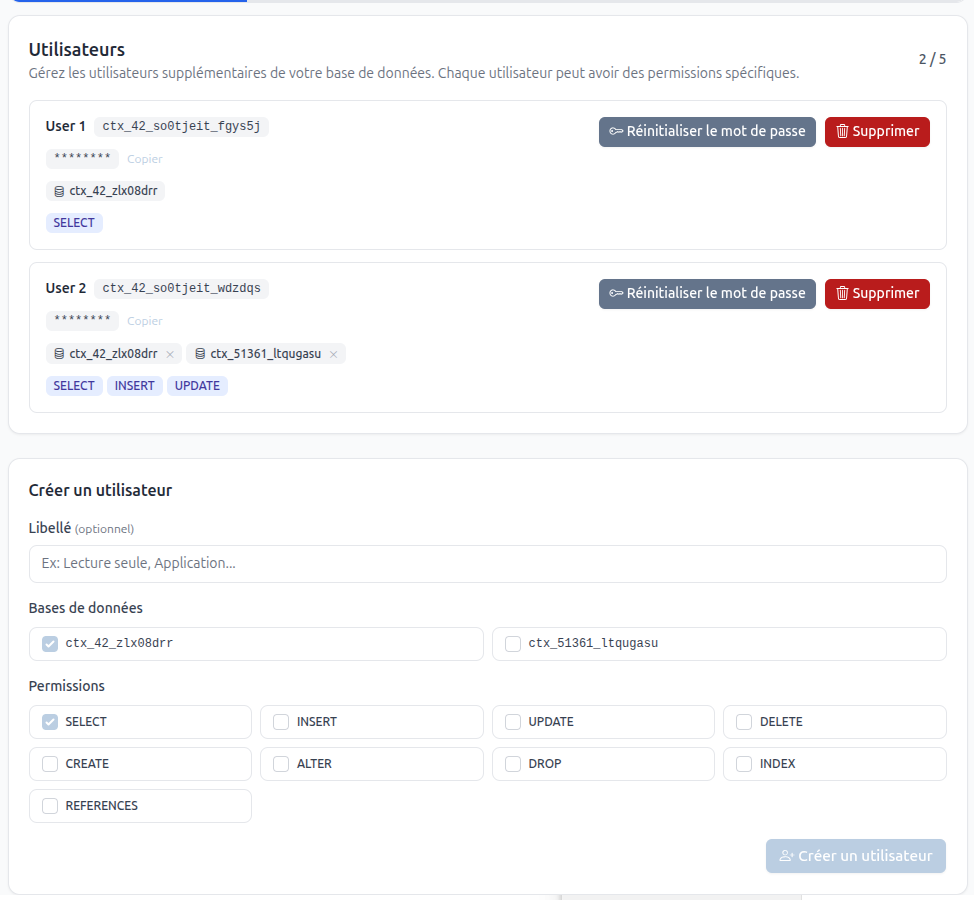
The customer can create additional users, associate them with one or more databases, select their permissions, reset their passwords, and delete them. Available permissions depend on the selected engine. Grant only the permissions required by the application; for example, a reporting user normally needs read access only.
Troubleshooting
- The server connection fails: verify DNS, IP address, port, firewall, remote listening address, and administrator credentials.
- Provisioning fails: confirm that the administration account can create databases/users and grant permissions.
- A customer cannot connect: check the service status, connection limit, allowed network, engine logs, and the hostname shown to the customer.
- ProxySQL access fails: verify port
6032for administration, the frontend connection address, admin credentials, default hostgroup, and that the MySQL backend is online. - An upgrade does not apply: confirm that the target engine supports the changed limit and review the CLIENTXCMS logs in
Settings>Security>History.