Social Networks
In CLIENTXCMS, social network integration is an essential bridge between your platform and your extended digital ecosystem.
The objective is strategic: extend your online presence, facilitate sharing and engagement and create a community around your brand. A well-orchestrated social presence can increase your traffic by 25% and significantly strengthen customer trust through social validation.
This page allows you to configure all links to your social networks for seamless integration on your platform.
You can manage your social networks from:
Settings > Personalization > Social Networks
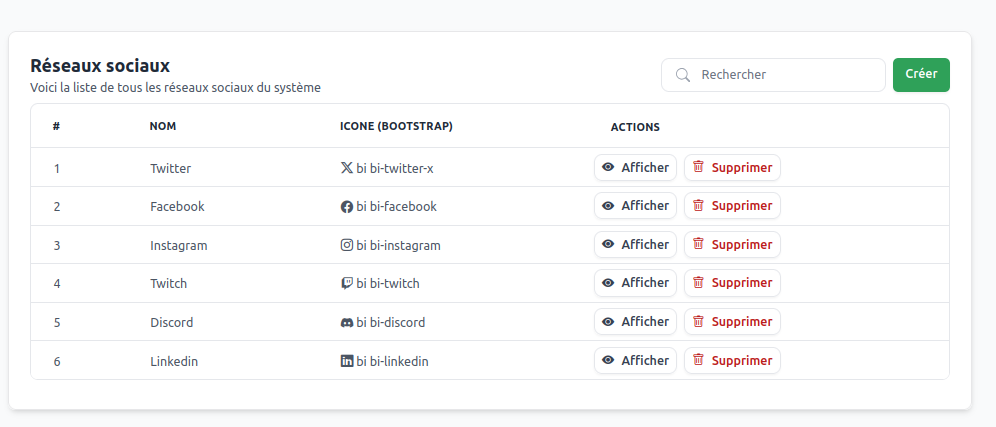
Your social networks are your digital ambassadors. They humanize your brand and create a relationship of proximity that your website alone cannot offer.
Why Integrate Social Networks?
Social integration allows you to:
- Extend your reach to new qualified audiences
- Humanize your brand with authentic and personal content
- Create engagement and build customer loyalty
- Improve your SEO with positive social signals
- Facilitate sharing of your content and offers
It's like opening branches of your store in different digital neighborhoods — each network connects you to a specific community.
Social Network Management
Administration Interface
The interface allows you to view, organize and manage all your social network links from a centralized dashboard.
Available Features:
- Overview: Complete list of your configured networks
- Quick Management: Add, modify, delete in a few clicks
- Preview: View of the final display
- Reorganization: Customizable display order
Adding a New Network
To add a social network, click the Create button at the top right of the page.
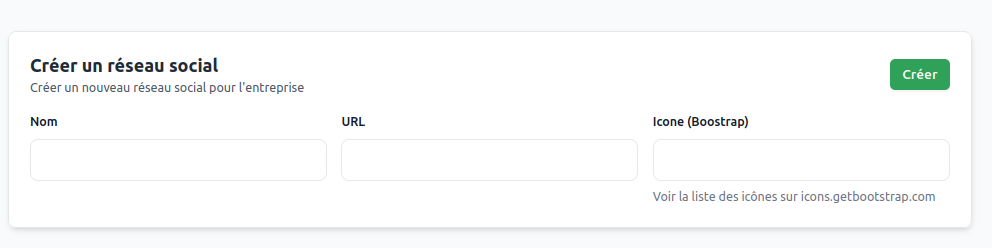
Network Configuration
Required Settings
Social Network Name | (displayed label)
Name visible to your visitors, usually the official network name.
Recommendations:
- Official names: "Facebook", "LinkedIn", "Instagram", "YouTube"
- Consistency: Respect official spelling
- Clarity: Immediately recognizable
- Avoid: Confusing abbreviations or nicknames
Profile URL | (destination link)
Full link to your profile or page on the social network.
Required Format:
https://www.facebook.com/yourpage
https://www.linkedin.com/company/yourcompany
https://www.instagram.com/youraccount
https://www.youtube.com/c/yourchannel
https://twitter.com/youraccount
Modification and Management
Editing an Existing Network
You can edit a social network by clicking the View button in the "Actions" column.
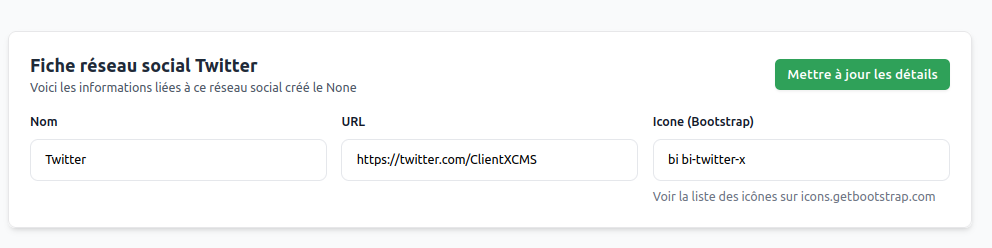
Possible Modifications:
- URL Update: Profile address change
- Icon Change: Visual adaptation
- Name Modification: Label adjustment
Display and Integration
Position on the Site
Social networks are automatically displayed at the bottom of your site in the footer.
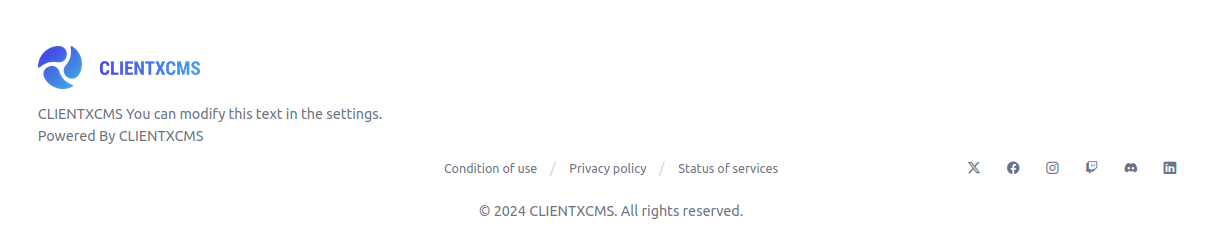
Once your social networks are configured, don't forget to click Save to apply the changes.